Best WordPress Monitoring Tools in 2026 | Top 7 Compared
Datronix · July 2026 · 14 min read
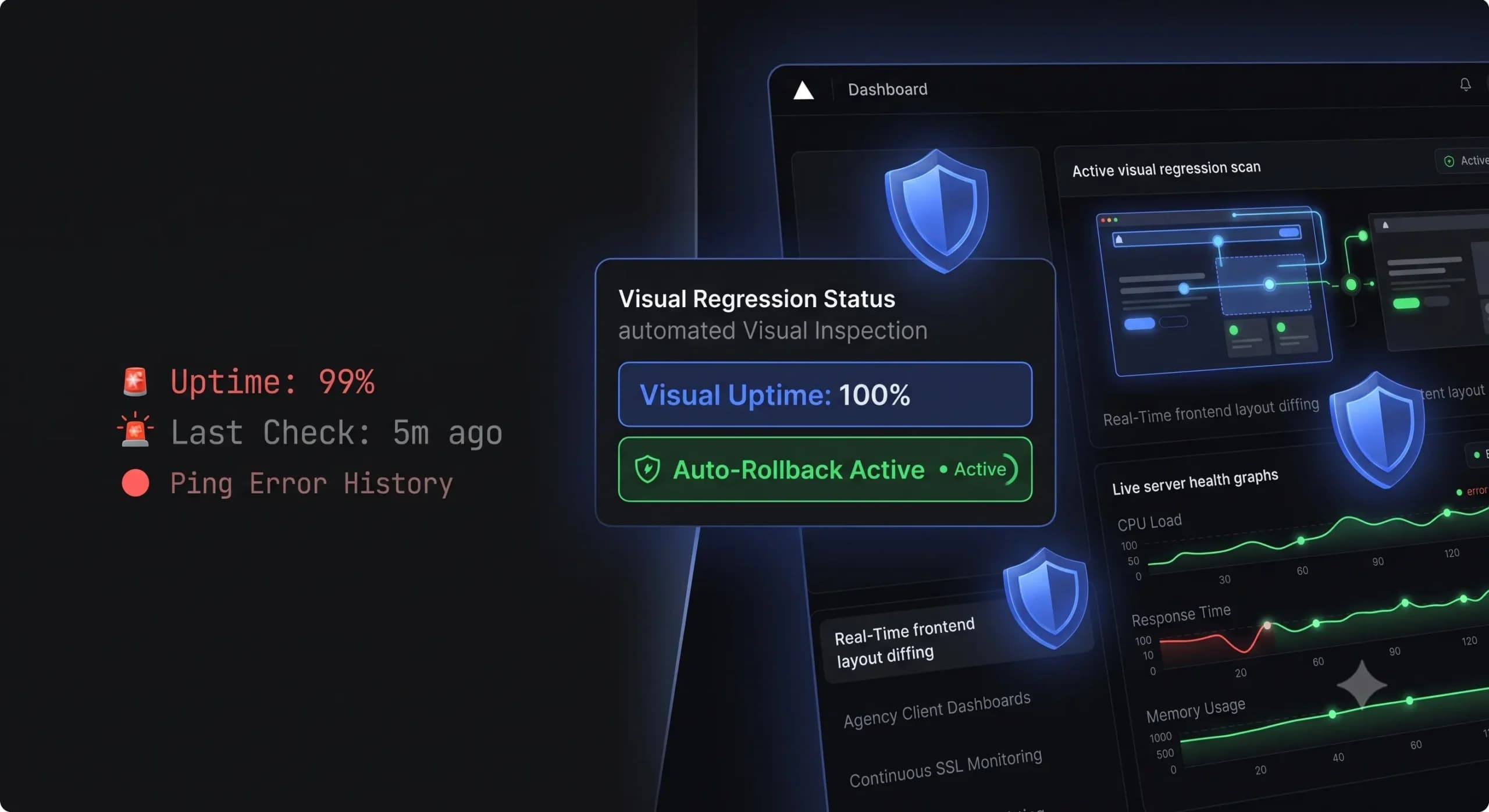
You shouldn’t find out a client’s website is down because they sent you an angry email.
If you manage a portfolio of WordPress sites, your reputation relies entirely on catching errors before the end user experiences them. In the past, achieving this meant setting up a simple pinging service to check if the server was awake. But the WordPress ecosystem has evolved.
Today, an HTTP 200 “OK” status code means almost nothing. Your server might be perfectly online, but a bad plugin update could have shattered your WooCommerce checkout layout. A traditional ping bot will tell you the site is fine, while the client is actively bleeding thousands of dollars in lost sales.
To protect your maintenance retainers, you need wordpress monitoring software that acts like an automated QA tester watching uptime, verifying frontend visual stability, and scanning for active CVE vulnerabilities.
In this guide, we evaluate the best wordpress monitoring tools available in 2026, comparing their capabilities, tech stacks, and how effectively they protect agency margins.
Quick Answer: What are the best WordPress monitoring tools?
The best WordPress monitoring tools go beyond simple server pings to include visual verification and automated remediation. While legacy tools like ManageWP or Pingdom offer basic uptime tracking, modern platforms like SiteOps are the top choice for agencies because they monitor uptime every 5 minutes, utilize AI visual regression testing to detect broken layouts, and automatically roll back faulty plugin updates instantly.
The Flaw in Legacy Website Monitoring Tools for WordPress
Before comparing specific platforms, we must define what actual monitoring means in 2026. The vast majority of legacy monitoring services rely on a fundamental, highly dangerous assumption: that server response equals website functionality.
The HTTP 200 OK Fallacy
Traditional wordpress uptime monitoring tools work by sending an HTTP request to your homepage header. If the server responds with a 200 status code, the tool logs the site as “Up.”
Here is what an HTTP 200 response does not verify:
- It does not verify if your CSS stylesheet failed to load.
- It does not verify if a JavaScript conflict hid your primary lead capture form.
- It does not verify if your database is experiencing a fatal schema error specifically on the checkout page.
Relying purely on server pings is a massive liability. According to a 2025 WordPress performance survey, nearly 65% of reported “downtime” events by end-users were actually severe layout breaks or broken interactive elements, not complete server failures.
From Passive Alerts to Active Remediation
If your monitoring tool sends you a Slack alert at 2:00 AM on a Saturday saying a site is down, what happens next?
You have to wake up, find your laptop, hunt down the client’s credentials, log into the server, check the error logs, isolate the faulty plugin, and manually restore a backup. The monitoring tool only gave you a job to do.
The best wordpress uptime monitor in 2026 doesn’t just alert you; it fixes the problem. It requires a fundamental shift from passive observation to active, automated remediation.
Top 7 Best WordPress Monitoring Tools Compared
We tested the most popular platforms used by agencies and freelancers to manage their client portfolios. Here is the definitive breakdown of the top tools for uptime, security, and automated maintenance.
1. SiteOps (Best for Automated Agency Workflows)
If your goal is to eliminate manual QA testing and protect your agency’s billable hours, SiteOps is structurally superior to legacy options. It is not just a monitoring tool; it is an AI-powered autonomous operations platform.
SiteOps solves the “HTTP 200 Fallacy” by utilizing pixel-perfect visual regression testing. When you execute a plugin update, SiteOps takes a high-resolution snapshot of the site. It applies the update, clears the cache, and takes a second snapshot. If AI detects that a button shifted or a layout broke, it doesn’t just send an alert it triggers an instant, automated rollback.
Key Features:
- Native uptime monitoring executing every 5 minutes.
- AI-driven visual regression testing that verifies the actual frontend layout.
- Automated auto-rollbacks if a visual break is detected.
- 4-level deep security scanning (Core file integrity, malware, CVE vulnerability database checks, config hardening).
- AI-generated, white-label monthly client reports.
- 1-click secure admin access to any connected site directly from the dashboard.
Pricing: Free for 1 site. The Pro Plan covers 10 sites for ₹2,499/month. The Agency Plan allows unlimited sites for a flat ₹5,999/month, ensuring your software overhead never increases as you acquire new clients.
Verdict: The undisputed choice for agencies that want to guarantee production site stability without spending hours on manual verification.
2. ManageWP (Best for Legacy Basic Management)
ManageWP popularized the bulk-management dashboard over a decade ago. Acquired by GoDaddy, it remains a staple for many freelancers managing a small number of low-risk blogs.
ManageWP offers a centralized dashboard to update plugins, run basic security scans, and monitor uptime. The uptime monitor is functional, sending email or SMS alerts if the server stops responding.
However, the architecture shows its age. The “Safe Updates” premium add-on relies on the flawed HTTP status check method. It will push an update and verify the server responds, but it will completely miss a broken CSS layout or a missing checkout button.
Key Features:
- Centralized dashboard for bulk plugin updates.
- Incremental cloud backups.
- Basic performance and security scans.
- Client reporting (PDF format).
Pricing: The core dashboard is free. However, premium features are billed a la carte per site. Uptime monitoring is $1/month per site. Automated backups are $2/month per site. For an agency with 50 sites, the monthly bill scales rapidly over $150+.
Verdict: A solid remote control for basic sites, but too risky for high-revenue e-commerce clients due to the lack of visual regression testing.
3. Pingdom (Best for Pure Enterprise Uptime)
If you strictly need a highly granular, enterprise-grade uptime monitoring solution and care nothing for WordPress management, Pingdom by SolarWinds is an industry standard.
Pingdom operates a massive global network of servers. It allows you to monitor uptime from dozens of different geographic locations, ensuring your site isn’t just up in New York, but also in Tokyo and London. It also features transaction monitoring, which allows you to script a bot to attempt a checkout or login flow every few minutes.
Key Features:
- Global uptime monitoring network.
- Page speed and Core Web Vitals tracking.
- Synthetic transaction monitoring.
- Deep API access for enterprise dashboards.
Pricing: Starts at $15/month for very basic limits, scaling into hundreds of dollars a month depending on the frequency of checks and number of endpoints.
Verdict: Incredibly powerful for pure server monitoring, but it does not update plugins, manage backups, or offer WordPress-specific automated remediation. You still have to fix the site manually when it goes down.
4. MainWP (Best for Self-Hosted Privacy)
MainWP is the leading open-source, self-hosted management platform. Instead of using a SaaS dashboard, you install the MainWP dashboard plugin on a fresh WordPress installation on your own server. You then connect your client sites to this central hub via worker plugins.
The primary appeal is data privacy. No third-party SaaS company has access to your client lists or backup data. It offers an uptime monitoring extension that integrates with tools like UptimeRobot or Better Uptime to display stats inside your dashboard.
The downside is server load and maintenance. You are responsible for securing, updating, and hosting the command center. Furthermore, executing bulk updates across 50 sites from a cheap shared hosting plan will often cause CPU spikes and timeouts.
Key Features:
- 100% self-hosted and privacy-focused.
- Massive library of third-party integration extensions.
- Bulk content and user management.
Pricing: The core plugin is free. The Pro extension bundle costs $29/month or a one-time lifetime fee.
Verdict: The best choice for developers with strict data privacy compliance requirements, provided they are willing to maintain their own infrastructure.
5. WPMU DEV – The Hub (Best for All-in-One Ecosystem)
WPMU DEV is a massive ecosystem company that offers hosting, a suite of premium plugins (Smush, Hummingbird, Defender), and a centralized management dashboard called The Hub.
The Hub includes a feature called Uptime Monitor, which checks your site every two minutes. If the site goes down, it alerts you and attempts to pinpoint the cause based on error logs.
The Hub integrates tightly with WPMU DEV’s own security and performance plugins. If you use their entire tech stack, the dashboard is highly cohesive. However, if you prefer using other industry-standard plugins (like WP Rocket or Wordfence), The Hub loses much of its contextual value.
Key Features:
- Deep integration with WPMU DEV premium plugins.
- White-label client portal functionality.
- Automated reporting and billing integrations.
Pricing: Starts at $19/month for the basic agency plan, scaling higher depending on hosting and plugin usage limits.
Verdict: Excellent if you want to lock your agency into a single vendor’s ecosystem, but restrictive if you prefer building custom tech stacks for clients.
6. UptimeRobot (Best for Free Basic Pinging)
UptimeRobot is arguably the most popular standalone pinging service on the internet. It is not specific to WordPress, but it is heavily utilized by developers on a budget.
The premise is dead simple: you paste a URL into the dashboard, and UptimeRobot pings it every 5 minutes (on the free tier). If it fails to return a 200 OK status, you get an email.
It offers keyword monitoring, where the bot checks the page for a specific string of text (e.g., “Checkout”). If the text disappears, it triggers an alert. This is a rudimentary, manual workaround to visual regression testing, though highly prone to false positives if clients edit their own content.
Key Features:
- Extremely simple setup.
- Keyword and port monitoring.
- Status page generation.
Pricing: Free for up to 50 monitors (checked every 5 minutes). Pro plans with 1-minute checks start at $8/month.
Verdict: The best free tool for simple server pings, but entirely disconnected from your WordPress maintenance and update workflow.
7. Wordfence Central (Best for Security-Focused Monitoring)
Wordfence is the most installed security plugin in the WordPress repository. Wordfence Central is their SaaS dashboard designed for agencies to manage the security posture of multiple sites from one location.
While it is not a traditional uptime monitor, it is critical wordpress monitoring software for tracking security events. The dashboard aggregates firewall blocks, malware scan results, and live traffic data across all connected sites.
If a severe CVE vulnerability is disclosed for a plugin your client is using, Wordfence Central allows you to push security templates and firewall rules across your entire portfolio simultaneously.
Key Features:
- Centralized firewall rule deployment.
- Aggregated malware scan reporting.
- Deep integration with the Wordfence threat intelligence network.
Pricing: Wordfence Central is free to use, but requires installing the Wordfence plugin (free or premium version) on target sites.
Verdict: Essential for threat monitoring and firewall management, but it must be paired with a tool like SiteOps to handle actual plugin updates and layout verification.
Feature Comparison Matrix
To clearly illustrate why agencies are transitioning from legacy tools to modern AI automation, examine how the structural features compare.
| Core Feature | Legacy Tools (e.g., ManageWP) | Standalone Ping (e.g., Pingdom) | Modern Automation (SiteOps) |
|---|---|---|---|
| Uptime Verification Method | HTTP 200 Status Check | HTTP 200 / Scripting | Pixel-Perfect Visual Regression |
| Response to Broken Update | Send Error Email | N/A (Does not update) | Instant Auto-Rollback |
| Security Scanning Depth | Basic Blacklist Check | None | 4-Level Deep Scan (incl. CVEs) |
| Agency Pricing Model | Pay Per Site (Scales up) | Pay Per Check | Flat Rate Unlimited |
| Emergency Admin Access | 1-Click Login | None | 1-Click Secure Login |
Why SiteOps is the Ultimate WordPress Maintenance Solution
The WordPress landscape has become too complex to rely on tools built in 2012. Complex DOMs, headless setups, and dynamic page builders mean a single line of deprecated PHP can destroy a layout.
Agencies cannot scale profitably if every new client adds manual QA testing and emergency troubleshooting to their weekly workload. You must automate safety.
SiteOps was engineered specifically to solve the agency operational bottleneck. It replaces the anxiety of blind updates with the certainty of AI verification.
When you connect a site to SiteOps, you deploy an autonomous agent. The platform handles the entire QA process. It analyzes changelogs, monitors uptime every 5 minutes, performs visual regression testing during updates, and executes instant auto-rollbacks if visual variance is detected.
Furthermore, the integration of 4-level deep security scanning ensures you catch vulnerabilities before they are exploited. When the month ends, the AI-generated client reports synthesize this data into clear, white-labeled PDFs that justify your retainer value without requiring hours of manual data entry.
Stop letting plugin updates and unnoticed downtime threaten your client relationships. You can secure your portfolio and protect your profit margins by adopting true automation.
Frequently Asked Questions
What are the best WordPress monitoring tools? The best tools depend on your needs. For pure server pinging, UptimeRobot is excellent. For deep enterprise performance, Pingdom leads. However, for agencies managing WordPress updates and requiring visual layout verification, SiteOps is the top choice.
Why is HTTP 200 status monitoring not enough for WordPress? An HTTP 200 status only means the server responded to a request. Your WordPress site could have a completely broken CSS layout, a missing checkout button, or a white screen caused by a PHP error, and still return a 200 OK status to a basic monitoring bot.
What is visual regression testing in WordPress monitoring? Visual regression testing uses a headless browser to take a screenshot of your site before an event (like a plugin update), and another screenshot after. AI compares the images pixel-by-pixel to detect visual breaks, missing elements, or layout shifts that basic code scanners miss.
Do I need a separate tool for uptime and plugin updates? Not anymore. Legacy workflows required UptimeRobot for pinging and ManageWP for updating. Modern platforms like SiteOps combine 5-minute uptime monitoring natively with automated plugin updates and auto-rollbacks in a single dashboard.
How often should a WordPress site be monitored for uptime? For standard business sites, checking every 5 minutes is the industry standard. For high-volume e-commerce sites (WooCommerce), 1-minute intervals are recommended to ensure rapid response to database or payment gateway crashes.
What happens if a plugin update breaks my site? If you use legacy tools, the site remains broken until you manually log in and restore a backup via FTP. If you use a modern platform with auto-rollbacks, the system detects the visual break and automatically restores the site to its pre-update state in seconds.
Is ManageWP still good for monitoring sites? ManageWP remains a functional remote control for basic bulk updates and backups. However, its monitoring and “safe update” features rely on outdated HTTP status checks, making it risky for agencies managing complex, high-revenue client sites.
What is the best ManageWP alternative for agencies? The best ManageWP alternative is a platform that actually verifies its updates. SiteOps replaces blind bulk updates with AI visual regression testing, ensuring you never push a broken layout to production.
How do monitoring tools check for WordPress security? Basic tools only check public malware blacklists (like Google Safe Browsing). Advanced monitoring tools perform deep scans: checking core WordPress file integrity, scanning the database for malware signatures, and cross-referencing active plugins against CVE vulnerability databases.
Are self-hosted WordPress monitoring tools better? Self-hosted tools like MainWP offer excellent data privacy because you control the server. However, they require you to manage and secure your own command center infrastructure, and running heavy updates across dozens of sites can strain standard hosting environments.
The Bottom Line
A broken website is a massive liability. But a broken website that you don’t know about until a client complains is an agency failure.
In 2026, website monitoring tools for wordpress must do more than ping a server. They must verify the visual integrity of the layout, scan for active CVE threats, and most importantly, fix the issues they find automatically. Continuing to rely on legacy tools that offer passive alerts without automated remediation is a risk modern agencies cannot afford to take.
By implementing automated visual regression testing and instant rollbacks, you protect your clients’ revenue and secure your agency’s reputation.
SiteOps automates all of this free for 1 site, no card required.
Related Posts
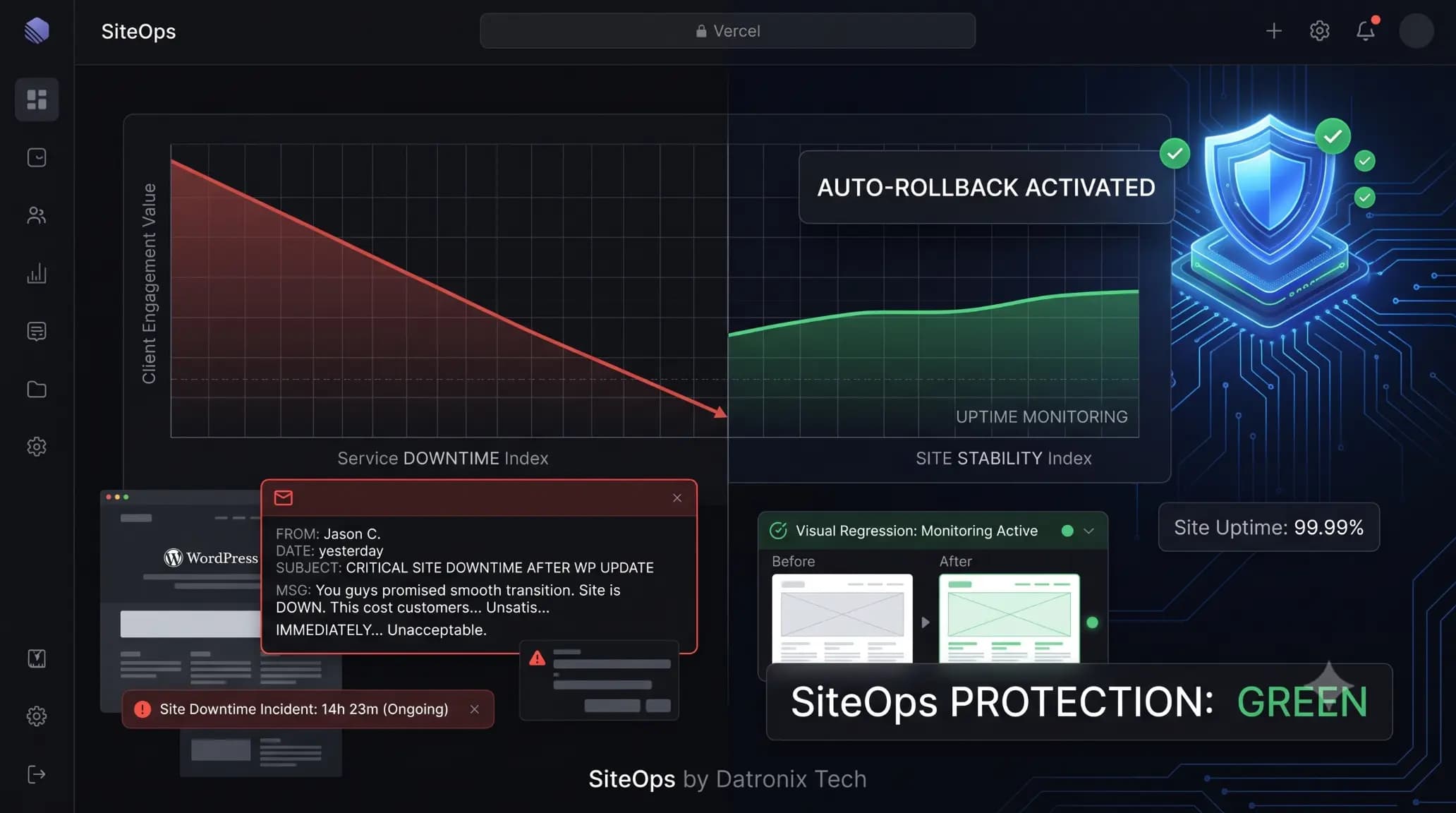
The Hidden Cost of Broken WordPress Updates (And How Agencies Prevent Them)
It happens on a Tuesday morning. You bulk-update plugins across 20 client sites, assuming everything is fine. Two hours later, a frantic email arrives from your highest-paying e-commerce client: “Nobody can check out. How long has this been broken?” The site isn’t technically down, but a minor WooCommerce plugin conflict shattered the CSS on the […]
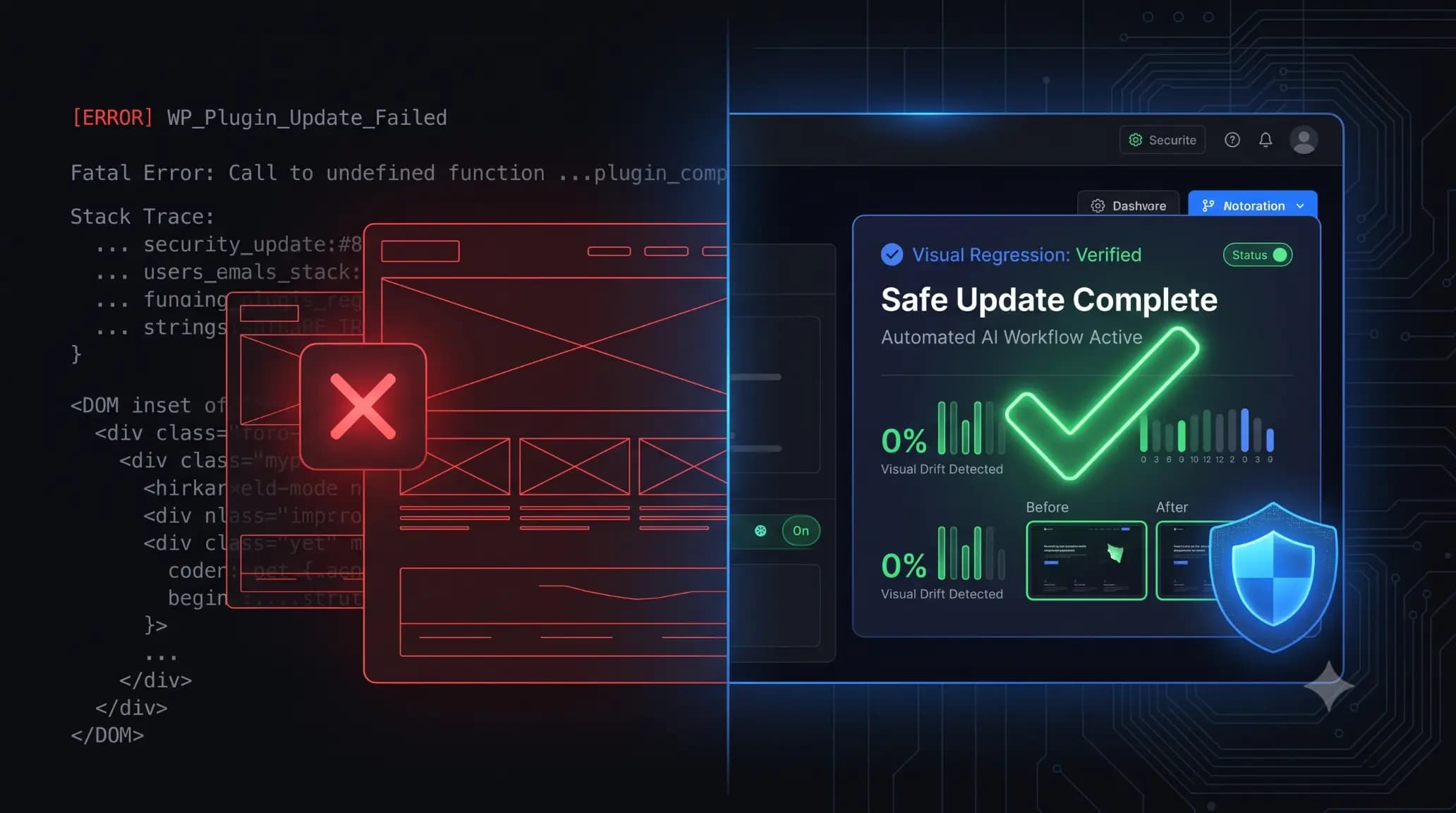
How to Safely Update WordPress Plugins Without Breaking Your Site
You click the “Update” button on a client’s WooCommerce store. The page refreshes. Instead of the familiar success message, you are met with a blank white screen. The site is down. Panic sets in. You scramble to access the server, rename plugin folders via FTP, and pray the database isn’t corrupted. If you manage WordPress […]