How to Safely Update WordPress Plugins Without Breaking Your Site
Datronix · June 2026 · 12 min read
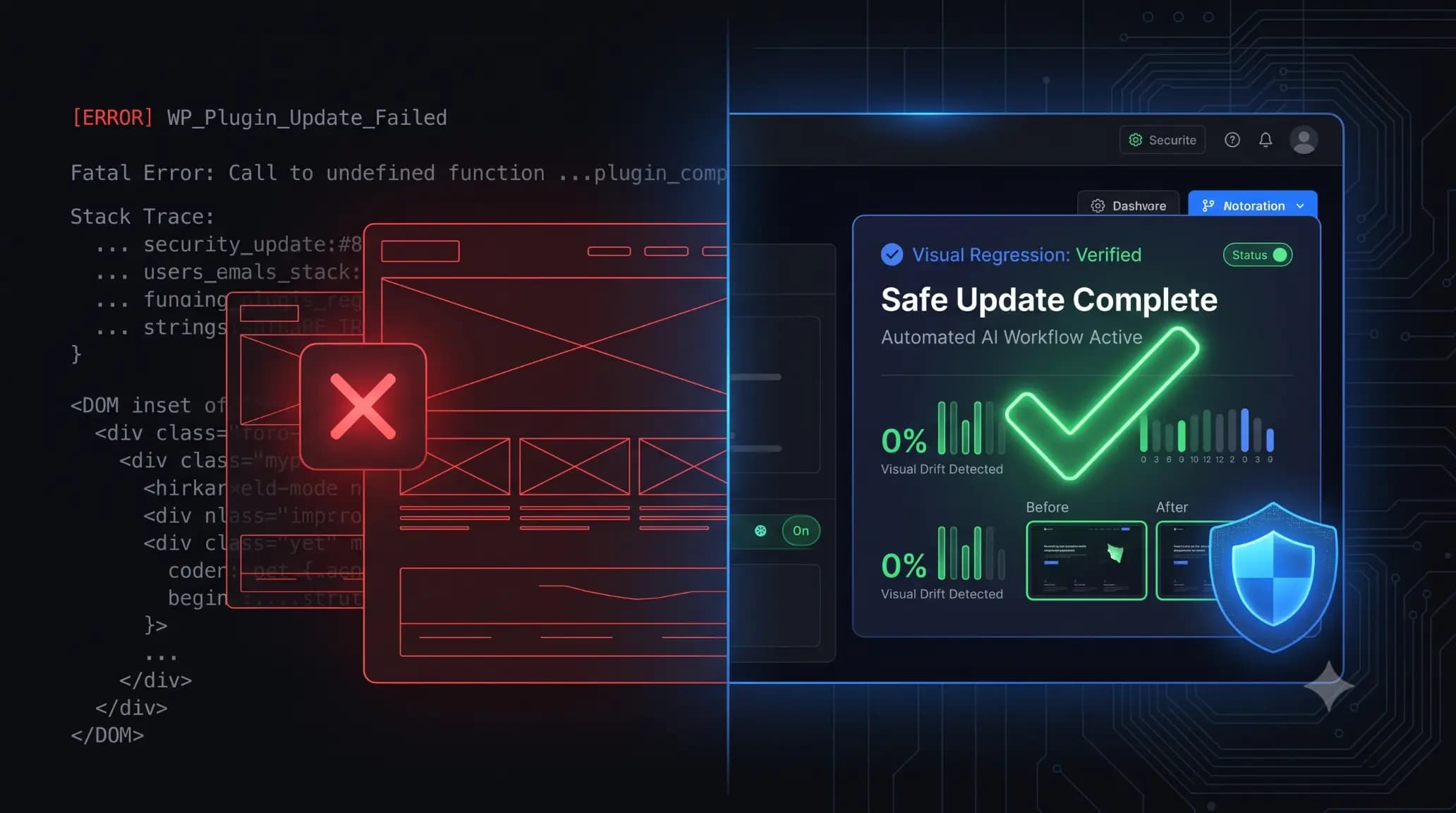
You click the “Update” button on a client’s WooCommerce store. The page refreshes. Instead of the familiar success message, you are met with a blank white screen. The site is down.
Panic sets in. You scramble to access the server, rename plugin folders via FTP, and pray the database isn’t corrupted.
If you manage WordPress sites, you know this sequence. Updating plugins is mandatory for security, but every click carries the risk of destroying a layout or breaking core functionality. According to WPScan vulnerability database reports, over 90% of WordPress security vulnerabilities originate from third-party plugins. You cannot afford to ignore updates, but pushing them blindly is an immense liability.
To scale your operations, you need a bulletproof framework for wordpress update management. This guide covers the technical reasons updates fail, the exact manual protocol for risk-free updates, and how modern agencies use automation to eliminate the danger entirely.
Quick Answer: How to safely update WordPress plugins?
To safely update WordPress plugins, never update directly on a live site. First, create a full backup of your database and files. Next, push the live site to a staging environment and apply the plugin updates there. Finally, perform visual and functional testing on the staging site. If no errors or layout shifts occur, you can safely apply the updates to your production site. For automated safety, modern agencies use visual regression testing tools to detect breakages and auto-rollback failed updates instantly.
Why Do WordPress Plugin Updates Break Sites?
Before you can prevent site breakages, you need to understand why they happen at a technical level. WordPress is a highly dynamic ecosystem. Your site is an amalgamation of core files, a theme, and potentially dozens of plugins written by entirely different developers.
When a plugin update broke site layouts or functionality, it usually stems from one of three structural conflicts.
1. PHP Version and Function Deprecation
WordPress runs on PHP. When a plugin developer updates their code to utilize newer PHP 8.x functions, but your server is still running PHP 7.4, the mismatch causes a fatal error. Conversely, if WordPress core deprecates an old function that an outdated plugin relies on, the entire site architecture can crash, resulting in the dreaded White Screen of Death (WSoD).
2. The DOM and CSS Class Conflicts
Modern WordPress relies heavily on complex DOMs (Document Object Models) generated by page builders like Elementor, Bricks, or Gutenberg. When an optimization plugin or a styling add-on updates, it may alter the names of CSS classes or change how JavaScript is deferred. A single shifted div container or a missing CSS class can shatter your entire frontend layout, rendering menus unusable or hiding checkout buttons.
3. Database Schema Mismatches
Major plugin updates, particularly for complex tools like WooCommerce or large SEO plugins, often require database database migrations. They add new tables or alter existing data structures. If an update is interrupted by a server timeout, or if a conflicting plugin attempts to access the database simultaneously, the database becomes corrupted.
Security Reality Check: You cannot avoid updates. Sucuri’s Website Threat Research Report states that over 50% of compromised WordPress sites were severely outdated at the time of infection. You must update, but you must do it safely.
The Traditional Manual Safe Update Protocol
If you are managing a single, high-revenue website without automation tools, you must execute a strict manual protocol. This process guarantees safe wordpress updates, though it is highly time-consuming.
Step 1: The Pre-Update Backup
Never rely solely on your host’s automated daily backups. Before initiating any update, trigger an immediate, manual backup of both your files and your MySQL database. Store this backup off-site, preferably on a third-party cloud storage provider like Amazon S3 or Google Drive. If the update causes a critical server error that locks you out of your hosting panel, you still control your data.
Step 2: Deploy to a Staging Environment
A staging site is an exact, isolated clone of your live production site. It allows you to test code changes without real visitors seeing the process.
- Push your live database and files to your staging URL.
- Ensure search engines are blocked from indexing the staging site (via
robots.txtor a password prompt). - Log into the staging WordPress dashboard.
Step 3: Execute and Isolate Updates
Do not click “Update All.” Bulk updating manually removes your ability to isolate a problem.
- Update plugins one at a time.
- Start with minor plugins, then update your theme, then major operational plugins (like WooCommerce), and finally update WordPress Core.
- After each individual update, clear the staging site’s cache.
Step 4: Visual and Functional QA Testing
This is the most critical and tedious step. You must act as a Quality Assurance tester.
- Load the homepage, about page, and contact page. Check for visual alignment issues.
- Test all primary conversion points. Submit a test lead form.
- If you run an e-commerce site, add an item to the cart and proceed completely through the checkout flow to verify payment gateways are still firing.
Step 5: Push to Production
If the staging site passes all visual and functional tests, you can proceed. You have two choices: push the staging environment back to the live server (overwriting the live site), or log into the live site and confidently replicate the exact updates you just verified on staging.
The Agency Bottleneck: Why Manual Verification Fails at Scale
The manual staging protocol is safe, but it does not scale.
If you are a freelancer or agency managing 20, 50, or 100 client sites, manual QA testing is mathematically impossible to sustain profitably.
The Billable Hour Drain
Pushing a button to update plugins takes seconds. Manually verifying homepages, checking CSS layouts, and testing checkout forms across 50 different websites takes hours. If you dedicate your team’s Friday afternoon to manual QA testing, you are burning thousands of dollars in billable hours on tasks that machines can execute perfectly.
The Inevitability of Human Error
Humans suffer from fatigue. When an agency owner checks their 40th website of the day, their eyes gloss over. They might miss that a font weight changed, or that a mobile menu is slightly misaligned. Relying on human eyes to spot a broken CSS class across hundreds of pages is a deeply flawed workflow.
The Modern Standard: How to Automate Safe WordPress Updates
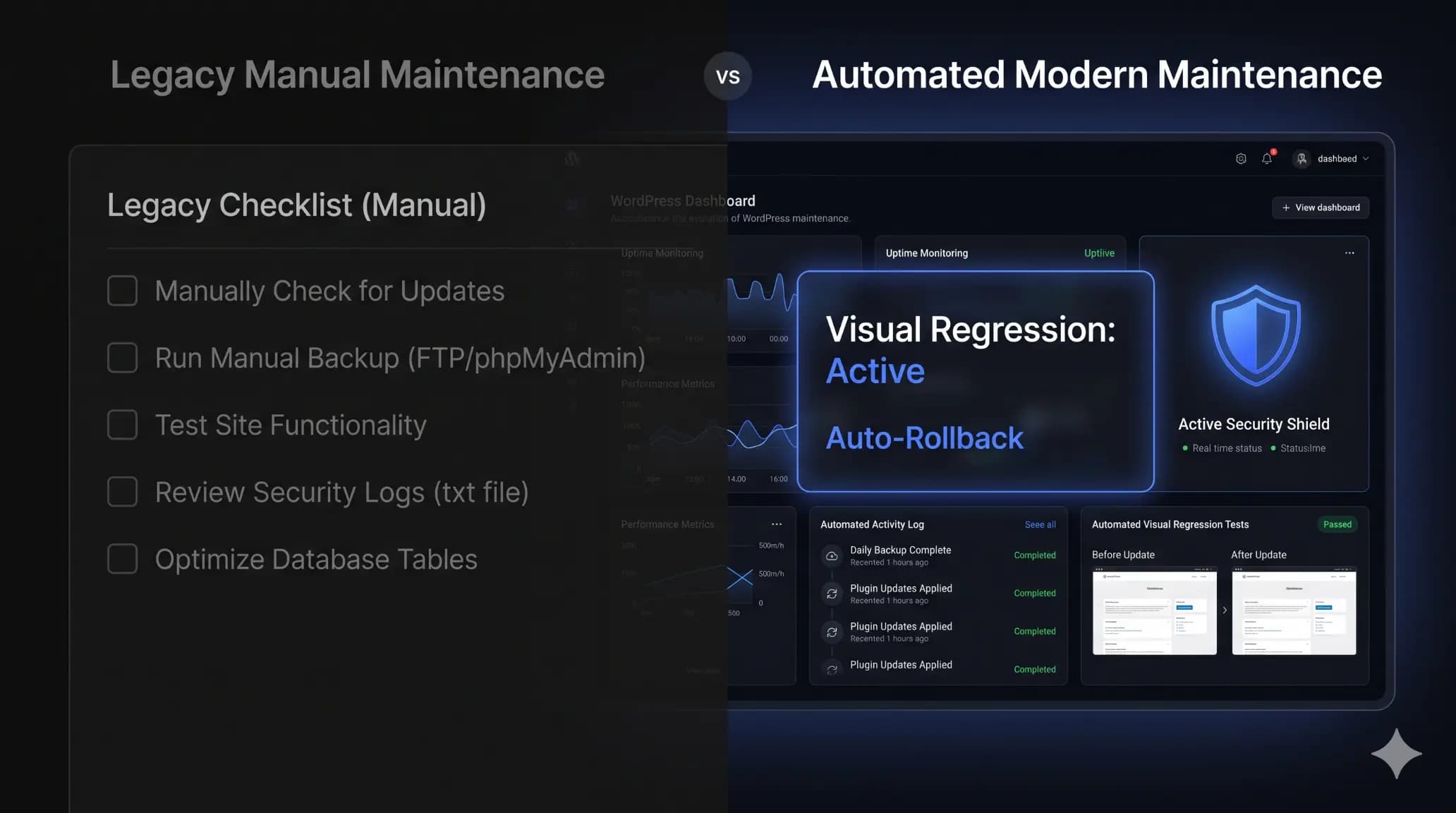
To scale operations without increasing liability, agencies are abandoning manual staging tests and adopting automated wordpress update management systems powered by visual regression testing.
Understanding Visual Regression Testing
Visual regression testing treats the website exactly like a human visitor would, but with pixel-perfect accuracy. It completely removes the need for staging environments for routine plugin updates.
Here is how modern automation safely handles the update process:
- The Pre-Flight Snapshot: A headless browser visits the live site and takes a high-resolution screenshot and DOM snapshot of key pages.
- The Automated Update: The system executes the requested plugin update and automatically clears the server cache.
- The Post-Flight Snapshot: The system takes a second screenshot of the exact same pages.
- AI Variance Analysis: The tool overlays the before and after images, comparing them pixel by pixel.
The Ultimate Safety Net: Automated Rollbacks
Detecting a visual shift is only half the battle. If an update breaks the site, the system must react instantly.
When a true automated system detects that a button shifted, a font broke, or a white screen appeared, it triggers an immediate auto-rollback. It restores the database and file system to the pre-update state in seconds. The client never sees the broken layout, and you receive a notification detailing exactly which plugin failed the visual test.
This is the exact infrastructure built into SiteOps. It allows agencies to manage hundreds of sites with the confidence that no update will ever permanently break a production layout.
Triage: What to Do When a Plugin Update Broke Your Site
If you did not use a staging environment or an automated rollback tool, and a plugin update broke site access, you must triage the situation immediately.
Method 1: Recovery Mode
Modern versions of WordPress include a native fatal error protection feature. If an update crashes the site, WordPress sends an email to the admin address with a special “Recovery Mode” link. Clicking this link allows you to bypass the frontend error, access the dashboard, and deactivate the offending plugin.
Method 2: FTP Directory Renaming
If you cannot access the WordPress dashboard and did not receive a recovery email, you must use FTP or your host’s File Manager.
- Connect to your server and navigate to
wp-content/plugins/. - Locate the folder of the plugin you just updated.
- Rename the folder (e.g., change
woocommercetowoocommerce-broken). - This forces WordPress to instantly deactivate the plugin, usually restoring access to your dashboard.
Method 3: WP-CLI Rollbacks
If you are comfortable with the command line and have SSH access, WP-CLI is the fastest manual recovery method. Run the command: wp plugin update [plugin-name] --version=[previous-version-number]. This forcefully downloads and installs the older, stable version of the plugin directly over the broken one.
Comparing Update Methods: Manual vs Basic vs Visual Regression
To choose the right workflow for your business, evaluate the operational costs and safety guarantees of each method.
| Update Strategy | Speed of Execution | Layout Protection | Ideal User |
|---|---|---|---|
| Manual Staging | Very Slow (Hours) | High | Single site owners, high-risk enterprise |
| Basic Bulk Updaters | Fast (Seconds) | Zero (Blind Updates) | Low-traffic, non-critical hobby sites |
| Visual Regression AI | Fast (Automated) | Perfect (Auto-Rollbacks) | Freelancers and WordPress Agencies |
| Managed WP Hosting | Variable | Medium (Varies by host) | Users with high hosting budgets |
| WP Auto-Updates | Automatic | Zero | Only for non-essential test sites |
How SiteOps Replaces Manual Plugin Update Management
The WordPress ecosystem has outgrown legacy bulk update tools. An HTTP 200 “OK” status code does not mean a website is functional; it just means the server is online.
If your agency is going to scale profitably, you must eliminate the anxiety of the “Update All” button.
SiteOps was engineered specifically to solve the agency update bottleneck. It is the only platform that natively integrates pixel-perfect visual regression testing with instant automated rollbacks.
When you connect a client site to SiteOps, you stop acting as a manual QA tester. The platform analyzes changelogs, takes before-and-after screenshots, and autonomously reverts any update that causes visual variance. It pairs this with 4-level deep security scanning and uptime monitoring every 5 minutes.
Whether you manage 10 sites on a Pro plan or hundreds on an Agency tier, you retain your profit margins by letting AI handle the repetitive verification work.
Frequently Asked Questions
How do I safely update WordPress plugins? To safely update WordPress plugins, you must either test the updates on a staging site first, or use an automated maintenance tool with visual regression testing. Never run bulk updates directly on a live production site without a guaranteed rollback method.
What should I do if a plugin update breaks my WordPress site? If a plugin update breaks your site, access your server via FTP or File Manager, navigate to the wp-content/plugins folder, and rename the folder of the plugin you just updated. This forces WordPress to deactivate it and restores access to your admin dashboard.
Should I update all WordPress plugins at once? If you are doing manual updates, you should never update all plugins at once. Bulk updating makes it incredibly difficult to identify which specific plugin caused a layout break or fatal error. Always update them one by one.
What is visual regression testing for WordPress? Visual regression testing is an automated QA process that takes a screenshot of a website before a plugin update, and a second screenshot after. AI compares the two images pixel-by-pixel. If the layout breaks or shifts, the system detects it automatically.
Can WordPress automatically update plugins safely? WordPress core features a native auto-update option, but it is not safe for complex sites. Native auto-updates are “blind”—they push the new code without checking if it conflicts with your theme or breaks your frontend layout.
How do I automate WordPress plugin updates safely? Safe automation requires a third-party maintenance platform that utilizes AI auto-rollbacks. Tools like SiteOps will execute the update, run a visual regression test, and automatically restore the site’s backup if any errors are detected.
Why did my WordPress site crash after an update? Sites crash after updates due to code conflicts. The updated plugin may require a newer version of PHP than your server provides, it may conflict with Javascript from your page builder, or it may have failed during a database schema migration.
Do I need to backup my WordPress site before updating? Yes, you must always take a full backup of your files and database before updating any plugin or theme. If an update causes a fatal server error, that backup is the only way to restore your website.
How do agencies manage multiple WordPress updates? Agencies use dedicated WordPress maintenance platforms to manage updates across dozens of sites from a single dashboard. Modern agencies rely on tools with AI visual verification to ensure they don’t push broken code to client sites.
What is the best tool for WordPress update management? For agencies and freelancers, the best tools prioritize safety over speed. Platforms like SiteOps are preferred because they combine bulk management capabilities with automated visual regression testing and instant rollbacks.
The Bottom Line
Keeping WordPress plugins updated is non-negotiable for security and performance. However, pushing updates blindly to production environments is a recipe for disaster.
You must transition away from risky live updates. Whether you choose to invest the manual hours required for rigorous staging environment tests, or you leverage modern AI visual regression to automate the heavy lifting, safe wordpress updates require verification.
Stop crossing your fingers every time you click update. SiteOps automates all of this — free for 1 site, no card required.