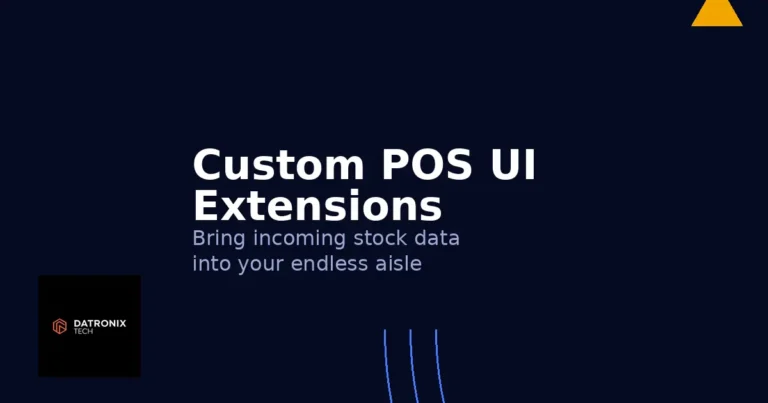
Customers expect to find everything when they walk into a store. Yet most brick‑and‑mortar shops only carry a fraction of their online catalogue, leading to disappointed shoppers and lost sales. Modern retailers are solving this disconnect with endless aisle strategies—giving in‑store shoppers access to the entire product catalogue via an iPad or kiosk so they can order items that aren’t physically on the shelf. Shopify custom POS UI extensions already includes basic endless‑aisle functionality, but most merchants still ask staff to flip between the POS app and a web browser to check warehouse stock or incoming shipments. This friction slows down sales and creates errors.
In this guide we show how to build a custom POS UI extension that brings “incoming stock” information directly into the checkout experience. By connecting your ERP or inventory system to Shopify’s POS using GraphQL and the new POS UI Extensions framework, you can let store associates quote accurate restock dates and place orders without leaving the checkout screen. Along the way we’ll explore why endless aisles matter, the benefits and challenges of unified inventory, and best practices for secure, upgrade‑safe extensions.
Why endless aisles matter
Endless aisles let retailers sell their full product catalogue without stocking every item at every store. The Shopify retail guide explains that endless aisles allow physical stores to hold less on‑site inventory and use warehouses or third‑party fulfilment networks to ship products to customers. This approach supports just‑in‑time inventory strategies and keeps shelves tidy while still offering a wide selection. Endless aisles also build loyalty—studies show that 37 % of in‑store shoppers will go elsewhere if the item they want is out of stock. By letting shoppers order online during their visit, retailers capture that purchase intent instead of losing customers to competitors.
Endless‑aisle strategies reduce return rates too. Shoppers can see, touch and decide if a product is right for them before it’s shipped to their home. This tactile experience decreases the chance of returns and improves customer satisfaction. However, implementing endless aisles isn’t trivial. The biggest challenge is maintaining accurate inventory across multiple locations and sales channels. Retailers need a commerce platform that centralises sales and inventory data so that the quantities shown in the online store and on the POS are always in sync. Without real‑time updates, associates might promise stock that doesn’t exist, causing stockouts—a problem that costs retailers an estimated $1 trillion annually.
The power of POS UI extensions
Shopify’s POS UI Extensions framework allows developers to extend the native POS interface with custom components that look and feel like built‑in features. According to the developer documentation, POS UI extensions can alert staff to low stock, display real‑time product availability across multiple stores and suggest ship‑from‑store options. Because these extensions run inside the POS app, they inherit native performance and responsive design.
The extensions framework exposes tiles, actions and blocks that developers can target. Tiles add buttons to the POS home screen; actions insert buttons inside existing workflows such as checkout or order details; blocks embed UI inside modals or detail screens. Each extension has access to the POS API and can query Shopify’s GraphQL Admin API directly using the built‑in fetch API. This means you can display live data from your Shopify store or external systems without forcing staff to open a browser.
Shopify’s own POS UI extensions already handle basic tasks like receiving inventory transfers. A help article describes how merchants can add an inventory transfer tile to the Smart Grid and use it to scan incoming shipments. Third‑party apps also leverage POS UI extensions for loyalty programs, pickup scheduling and bundling. However, there is no off‑the‑shelf extension that shows future stock arrivals. To build a truly seamless endless‑aisle experience, retailers need a custom extension tailored to their ERP and business rules.
Integrating ERP data and inventory states
At the heart of endless aisles is accurate inventory information. The InventoryLevel object in Shopify’s GraphQL API tracks four quantity states: available, onHand, incoming and committed. available represents sellable inventory at a location; incoming represents items on purchase orders or transfers that have not yet been received; committed tracks inventory allocated to open orders. Most POS systems only expose available inventory, but to answer the question “when will this be back in stock?” you need access to incoming dates from your ERP or purchasing system.
Large retailers typically manage inventory in an ERP like SAP, Oracle or NetSuite. These systems track purchase orders, expected arrival dates and supplier lead times. The Global ERP program described in Shopify’s enterprise POS guide connects inventory data with leading ERP vendors and warehouse management systems to give merchants a unified view of inventory. Even with this integration, staff still switch between apps to look up incoming shipments. A custom POS UI extension can eliminate that friction by pulling incoming quantities and expected delivery dates from your ERP and displaying them directly in the POS checkout screen.
Building a custom ‘incoming stock’ extension
Here’s a high‑level overview of how to build a custom POS UI extension that shows incoming stock for endless‑aisle ordering:
Define the user experience. Decide where the extension will appear. For example, create a tile on the POS home screen labelled “Check Incoming Stock.” When tapped, the tile opens a modal that lists the variant’s available quantities across locations and the expected arrival date for incoming stock. You could also insert a block directly on the product detail screen so associates see the information while processing a sale.
Set up the extension scaffold. Use Shopify CLI to generate a new POS UI extension. Choose the target (tile, block or action) and configure the extension’s capabilities. Shopify’s App Bridge and Extensibility APIs provide a skeleton for rendering React components and making GraphQL requests.
Query Shopify inventory. Within the extension, use
fetchto call Shopify’s Admin API and retrieve inventory levels for the selected product variant. The query should return theavailableandincomingquantities, along with location identifiers. If your business uses multiple fulfilment locations, cross‑reference the user’s current store location to show relevant stock.Pull ERP data. If the
incomingquantity is greater than zero, call your ERP’s API (via a middleware layer) to fetch the expected delivery date. For example, a Node.js middleware might expose an endpoint like/api/incoming/:variantIdthat returns a date and notes from the purchase order. This middleware can run outside of Shopify on your own infrastructure, but must be authenticated and authorised.Display the results. Render the available and incoming quantities and expected arrival date in a simple table. Use colour coding to highlight low stock and estimated delivery windows. Provide a button to add the product to the cart using Shopify’s
PosCartAPI so the associate can place the order on behalf of the customer.Handle fallbacks. If there is no incoming stock or the ERP API fails, display a friendly message and link to your online store so the customer can order directly via an endless‑aisle kiosk or mobile device.
Test across locations. Before rolling out, test the extension in multiple stores and on different POS terminals. Pay attention to offline caching and network connectivity; the extension should handle slow responses gracefully and cache the last known incoming date.
Best practices for endless‑aisle extensions
Developing a custom POS UI extension requires both technical skills and operational insight. Keep these best practices in mind:
Keep inventory in sync. Use Shopify’s POS API integration to unify online and offline data. When an item sells in store or online, the inventory should automatically update across all channels to prevent overselling. POS API integration also ensures inventory stays consistent across locations.
Choose the right target. Tiles are great for launching standalone workflows such as checking stock or creating quotes. Blocks integrate information directly into the product page or order details, reducing taps and training time. Actions add quick buttons to existing flows like discounts or shipping. Pick the target that fits your staff’s workflow.
Respect design and accessibility. POS UI extensions should match Shopify’s design system. Use high‑contrast text, clear labels and intuitive icons. Avoid overloading the screen with information—display only the most important details, with links to more data if needed.
Secure your data. When calling your ERP API, use encrypted connections and authenticated endpoints. Do not expose supplier information or internal purchase order numbers. Rate‑limit requests to prevent performance issues and implement caching for frequently queried data.
Plan for upgrades. Shopify continuously evolves its POS and API frameworks. Build your extension using upgrade‑safe components and follow versioning best practices. Test whenever you upgrade Shopify POS or your ERP to ensure nothing breaks.
Monitor and iterate. Track how often staff use the extension and measure its impact on sales and inventory accuracy. Gather feedback from associates about what information they need most and iterate on the design. As new POS targets and APIs become available, extend the functionality—for example, adding a reorder button that triggers a purchase order in your ERP.
Conclusion
Endless aisles are no longer a luxury but a necessity for omnichannel retailers. They allow merchants to hold less physical inventory, build customer loyalty and reduce returns. Yet the promise of endless aisles can only be fulfilled when store associates have real‑time access to accurate stock data—including incoming shipments. Shopify’s POS UI extensions and GraphQL APIs provide the perfect foundation for building this experience. By integrating your ERP and inventory systems into a custom extension, you can display incoming stock dates in the POS checkout, maintain unified inventory across channels and deliver the best possible service.
If you need help designing or building a custom POS UI extension, our team specialises in connecting Shopify POS with ERP systems, building middleware and crafting intuitive user interfaces. We’ve helped retailers integrate real‑time inventory across hundreds of stores and warehouses using the strategies outlined above. For further reading on integrating ERPs with Shopify, check out our guide on Shopify ERP/CRM integration, and learn how to build custom WooCommerce APIs for advanced functionality.