It is 2:00 AM. Your Black Friday sale just launched and your NetSuite to Shopify Sync is under pressure.
Suddenly, customers are emailing support: “I tried to buy the Red Shirt in Medium, but it says Out of Stock… even though the Large is available?”
You check NetSuite. You have 500 units. You check Shopify. It shows zero.
The sync is broken. Again.
For mid-market e-commerce brands, integrating an ERP (NetSuite) with a frontend (Shopify) is the standard growth playbook. But there is one specific area where this integration consistently fails: Matrix Items.
NetSuite and Shopify speak completely different languages when it comes to “Parent-Child” relationships. If you rely on a generic, out-of-the-box connector, you are walking into an inventory nightmare.
Here is why the sync breaks and how to architect a custom middleware solution that actually works.
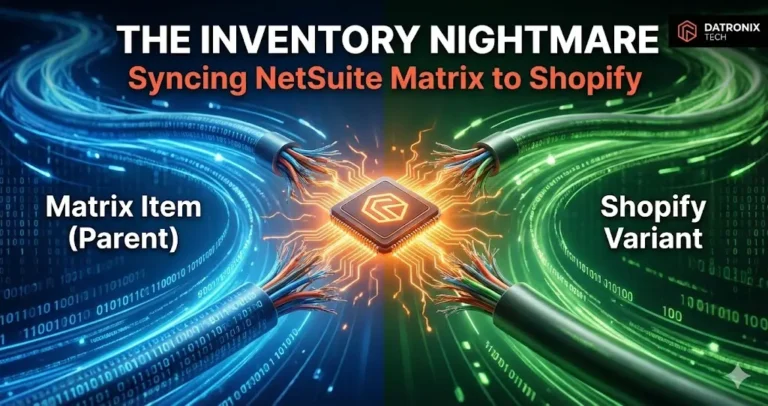
The Root Cause: “Matrix” vs. “Variant”
The fundamental problem isn’t the API; it’s the data structure.
NetSuite uses “Matrix Items.” In NetSuite, a “Matrix” is a collection of individual inventory items (SKUs) tied together by a parent item. The parent is essentially a dummy record; it holds no inventory itself. The inventory lives on the children (e.g., SHIRT-RED-MD, SHIRT-RED-LG).
Shopify uses “Variants.” Shopify sees a “Product” as a container that holds “Variants.” The variants share the product’s description and images but have their own price and SKU.
The Disconnect: When you try to sync these via a standard plugin, the connector often gets confused about which field maps to which.
Does the NetSuite Parent Description map to the Shopify Product Description?
What happens if the Parent is “Active” in NetSuite, but all Children are “Inactive”?
Does the sync treat a “Matrix Option” (Color) as a “Variant Option” or a custom field?
If this mapping isn’t explicitly defined in middleware, you end up with “Orphaned Variants”SKUs that exist in Shopify but aren’t attached to the parent product, making them unsearchable and unbuyable.
(This is one of the most common Shopify website mistakes we see during ERP migrations.)
Why “Plug-and-Play” Connectors Fail
Tools like Celigo (Integrator.io) or Boomi are powerful, but their “Pre-built Shopify Templates” are often too simplistic for complex catalogs.
They operate on a “Match Field A to Field B” logic.
The Trap: They usually assume a 1:1 relationship.
The Reality: Your business logic is complex.
For example, what happens when an item is Discontinued?
NetSuite: You mark the item status as “End of Life.”
Generic Connector: It sees “Inventory = 0” and tells Shopify “Quantity = 0.”
The Result: Shopify displays “Sold Out” (implying it will come back) instead of removing the variant or hiding the product. Customers sign up for “Back in Stock” alerts for a product that will never exist again.
The Solution: Custom Middleware Logic
To fix this, you don’t need a new ERP. You need a translation layer a Custom Middleware Script that sits between NetSuite and Shopify.
This script (usually running on Node.js or Python within the integration platform) applies logic before the data hits Shopify.
1. The “Parent-Child” Reassembly
Instead of syncing items individually, the middleware should fetch the entire Matrix from NetSuite, validate that the Parent has at least one active Child, and then push the payload to Shopify.
If a Parent has 5 children, but 4 are inactive in NetSuite, the middleware filters the payload so Shopify only creates the 1 active variant. This prevents your site from being cluttered with “Unavailable” dropdown options.
2. Intelligent Status Mapping (The “OOS” Logic)
We program the middleware to look at more than just the “Quantity” field. It looks at the Item Status in NetSuite.
Scenario A: Quantity is 0, but Status is “Active.”
Middleware Action: Tell Shopify
Inventory = 0ANDPolicy = Continue Selling(Backorder Mode).Shopify Frontend: Displays “Backordered: Ships in 2 weeks.”
Scenario B: Quantity is 0, and Status is “Discontinued.”
Middleware Action: Tell Shopify
Inventory = 0ANDPublished_Scope = null.Shopify Frontend: The variant completely disappears from the dropdown.
This level of granularity is impossible with a basic “Template Map.”
3. Handling Price Levels
NetSuite often has multiple “Price Levels” (Base Price, Wholesale, VIP). A generic connector might accidentally sync your “Wholesale Price” to the public Shopify “Retail Price” field, causing a massive revenue loss.
Custom middleware explicitly maps Price Level 1 (Retail) to Shopify Price and Price Level 2 (MSRP) to Shopify Compare-At Price, ensuring your discounts display correctly.
Conclusion: Don’t Let Data Break Your Sales
Your ERP is the source of truth, but your website is the source of revenue. If they aren’t speaking the same language, you are leaking money.
Correct Shopify ERP & CRM Integration isn’t just about moving data; it’s about translating business logic. By implementing a custom middleware layer, you ensure that your complex Matrix items look as good on the frontend as they do in the warehouse.
Is your inventory sync causing headaches? 👉 Download the ERP Integration Architecture Diagram Visualizing the correct middleware logic for NetSuite-to-Shopify data flows.