Elementor Update Broke My Site: Immediate Triage and Permanent Prevention
Datronix · July 2026 · 10 min read
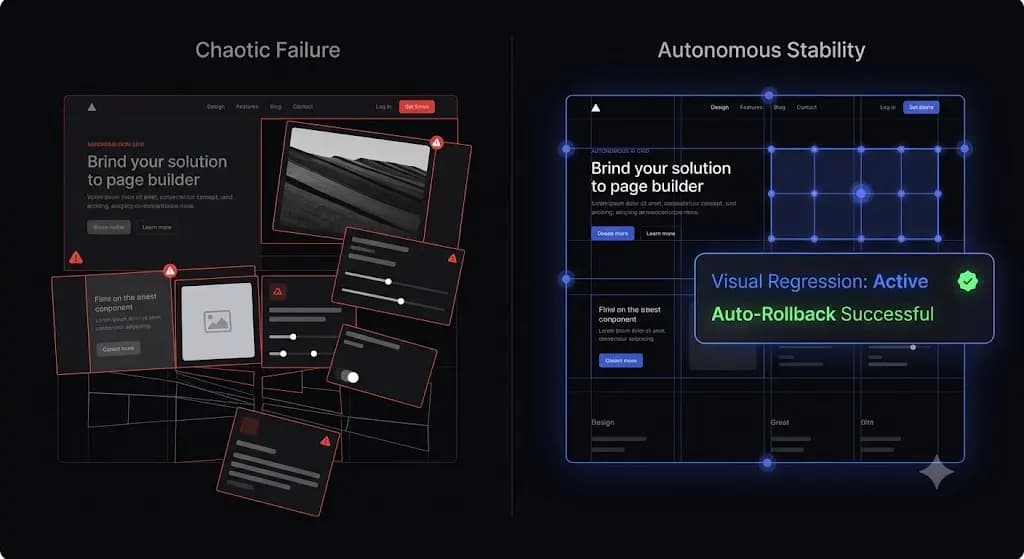
You click “Update” on Elementor and Elementor Pro. The page refreshes. You load the frontend of your client’s website, and your stomach drops.
The site is not completely offline, but it is entirely destroyed. The navigation menu is overlapping the hero section. Global fonts have reverted to default Times New Roman. The CSS grid powering your product catalog has collapsed into a single, massive vertical column. The website is functionally unusable.
Elementor powers millions of websites because of its incredible design flexibility. But that flexibility comes at a cost. Page builders generate incredibly complex Document Object Models (DOMs). A single minor update to how Elementor renders a CSS class or defers a JavaScript file can shatter your entire frontend layout instantly.
If an elementor update broke my site is the exact phrase you just typed into Google in a panic, you need immediate solutions. This guide provides the exact technical triage steps to restore your Elementor site right now. Once the fire is out, we will break down how top tier web agencies use AI visual regression testing to permanently eliminate this risk.
Quick Answer: What to do when an Elementor update breaks your site?
If an Elementor update broke your site’s layout, immediately clear your WordPress caching plugins and navigate to Elementor > Tools > General, then click “Regenerate Files & Data”. If the layout remains broken, go to Elementor > Tools > Version Control and rollback Elementor (and Elementor Pro) to the previous stable version. If you are locked out of wp-admin entirely, use FTP to rename the Elementor plugin folder to force deactivation.
Triage: 4 Methods to Fix a Broken Elementor Site Right Now
When a visual builder update destroys a layout, time is critical. You must isolate the conflicting code or revert the environment to a stable state. Here are the four most reliable recovery protocols.
Method 1: Regenerate CSS and Data (The Quick Fix)
Often, the update itself did not break the site. Instead, your server or browser is serving old, cached CSS files that no longer match the newly updated Elementor HTML structure. This mismatch creates visual chaos.
- Log into your WordPress dashboard.
- Navigate to Elementor > Tools > General.
- Click the Regenerate Files & Data button.
- Next, clear any server side caching plugins you have active (like WP Rocket or LiteSpeed Cache).
- Clear your edge cache (Cloudflare) if applicable.
- Open the site in an Incognito browser window. If the layout is restored, you simply had a caching conflict.
Method 2: Elementor Safe Mode
If the site is still broken, you must determine if Elementor is conflicting with your theme or another third party plugin.
- Navigate to Elementor > Tools > General.
- Locate Safe Mode and select Enable.
- Safe Mode temporarily isolates Elementor from all other plugins and your active theme. It creates a clean environment only visible to administrators.
- Open your pages in the Elementor Editor. If the editor loads perfectly and the layout is correct in Safe Mode, you have a plugin conflict. Disable your other plugins one by one until you find the culprit.
Method 3: The Version Control Rollback
If regenerating CSS and Safe Mode fail, the update itself is fundamentally incompatible with your site architecture. You must revert to the previous version. Elementor has a built in tool for this.
- Navigate to Elementor > Tools > Version Control.
- Under Rollback Version, select the version you were previously running from the dropdown menu.
- Click Reinstall.
- Critical Step: If you are running Elementor Pro, you must also roll back the Pro version to match the core version. Running mismatched core and Pro versions will cause fatal errors.
- Clear all caches again. Your site will instantly revert to its stable pre update state.
Method 4: FTP Deactivation (White Screen of Death)
Sometimes an Elementor update triggers a fatal PHP error (a syntax mismatch with your server’s PHP version), resulting in the White Screen of Death. You cannot access the Version Control panel because you are locked out of WordPress.
- Connect to your server using an FTP client like FileZilla.
- Navigate to
public_html/wp-content/plugins/. - Locate the
elementorandelementor-profolders. - Right click and rename them to
elementor-brokenandelementor-pro-broken. - This forces WordPress to instantly deactivate them. You can now log into your dashboard, install a previous version manually via a ZIP file, and restore the site.
The Agency Problem: Why Elementor Updates Are Expensive
If you are a freelancer managing client retainers, fixing a broken Elementor layout is only the surface issue. The true damage impacts your profitability.
The Failure of HTTP 200 Monitoring
If you manage 30 sites using a basic WordPress monitoring tool, you are likely relying on HTTP 200 status checks.
When an Elementor update shatters a CSS grid, the server does not crash. The server still responds with an HTTP 200 OK status. Your basic legacy dashboard shows a green checkmark, indicating the site is perfectly healthy. Meanwhile, your client’s mobile navigation is completely unusable.
The hidden cost of broken WordPress updates is massive. Relying on simple server pings forces your team to manually click through every single page after updating Elementor to verify the visual layout.
The Unbillable Staging Trap
To guarantee safe WordPress updates without specialized tools, agencies clone their Elementor sites to staging environments. They run the update, manually click through the homepage, about page, and contact forms to ensure the widgets survived the transition, and then push to production.
This unbillable labor destroys the profit margin of a standard monthly retainer. If you charge $150 a month for maintenance but spend two hours manually verifying Elementor layouts on a staging server, you are losing money on that contract.
Permanent Prevention: Automating Visual Verification
To scale a web agency profitably, you cannot manually clone 50 Elementor sites to staging environments every week. You must transition to an autonomous workflow.
Top tier agencies have solved the Elementor update bottleneck by abandoning manual QA and adopting AI WordPress maintenance platforms powered by machine vision.
Visual Regression Testing Explained
The only way to truly guarantee that a page builder update did not destroy a layout is to look at it. Modern platforms achieve this through visual regression testing.
Instead of just pinging a server, the system acts like a human Quality Assurance tester. It spins up a headless browser. It visits the live production site and takes a pixel perfect high resolution screenshot of the DOM. It applies the Elementor update, autonomously clears the server caching layers, and takes a second screenshot.
Artificial intelligence overlays the images. It easily detects a shattered Elementor CSS grid, a missing hero background, or a shifted button.
Instant Autonomous Auto-Rollbacks
Visual regression is powerful, but detecting a broken layout does not save you time if you still have to manually log in via FTP to fix it.
True automation requires active remediation. When a modern system detects a visual layout break during an Elementor update, it instantly halts the process. Within seconds, it triggers an autonomous rollback. The MySQL database and file system are restored to their exact pre update state before the client or their customers ever see the broken layout.
How SiteOps Solves the Page Builder Bottleneck
The WordPress ecosystem is too complex to rely on legacy “Update All” buttons. If you want to manage multiple WordPress sites built with Elementor profitably, you need a system that visually verifies its own work.
SiteOps is the premier ManageWP alternative because it was engineered specifically to solve this visual bottleneck.
When you connect a client site, SiteOps assumes total responsibility for operational safety. When you trigger plugin updates via the centralized WordPress maintenance tool, SiteOps executes pixel perfect visual regression testing across your portfolio.
If it detects an Elementor layout break, it instantly executes an auto rollback. Your clients experience zero downtime. You simply wake up to a dashboard notification explaining exactly which plugin failed the visual test, allowing you to investigate safely on a staging server.
By combining this autonomous visual safety with proactive WordPress security monitoring and native 5 minute WordPress uptime monitoring, the platform handles the heavy lifting natively.
SiteOps even transforms this data into AI generated executive summaries, creating the perfect white-label WordPress maintenance reports to prove your value to your clients.
Stop crossing your fingers every time Elementor releases a major version. Automate your entire portfolio safely today.
Frequently Asked Questions
Why did my layout break after updating Elementor? Elementor generates complex HTML and CSS structures. When you update, changes to how Elementor outputs code can conflict with your theme, your caching plugin, or custom CSS, causing the layout to shift or shatter entirely.
How do I fix a broken Elementor site without admin access? If a fatal error locks you out of the wp admin dashboard, you must use an FTP client. Navigate to the wp-content/plugins folder and rename the elementor and elementor-pro folders. This forces WordPress to deactivate them, instantly restoring dashboard access.
What is Elementor Safe Mode? Safe Mode is a diagnostic tool that temporarily loads the Elementor editor without any other active plugins or your current theme. If the editor works correctly in Safe Mode, you know your layout issue is caused by a third party plugin conflict, not Elementor itself.
How do I downgrade to an older version of Elementor? Navigate to Elementor > Tools > Version Control in your WordPress dashboard. Select the previous stable version from the Rollback Version dropdown menu and click Reinstall. Remember to rollback Elementor Pro to the matching version as well.
How do agencies safely update Elementor for clients? Agencies never push bulk updates blindly. They either use manual staging environments to visually test the updates, or they use automated platforms like SiteOps that utilize AI visual regression testing to detect layout breaks and execute instant auto rollbacks.
What is visual regression testing for page builders? Visual regression testing uses a headless browser to take a screenshot of a website before a plugin update, and a second screenshot immediately after. AI compares the images pixel by pixel to automatically detect visual breaks, missing widgets, or layout shifts caused by the new code.
Why is my Elementor styling not updating on the live site? This is almost always a caching issue. Navigate to Elementor > Tools > General and click Regenerate Files & Data. Then, clear your WordPress caching plugin (like WP Rocket) and your server level edge cache (like Cloudflare).
Is MainWP safe for bulk updating Elementor sites? While seeking a MainWP alternative, agencies realize that self hosted tools lack native automated visual verification. Pushing bulk Elementor updates via MainWP without visual testing carries the exact same risk of breaking a frontend layout as updating manually.
Why did an HTTP 200 check miss my broken Elementor layout? An HTTP 200 status only means your server responded to a request. A WordPress site could have a completely shattered Elementor CSS grid, a missing hero section, or a broken lead form and still return a 200 OK status to a basic legacy ping bot.
How do I automate WordPress maintenance safely? To automate WordPress maintenance for multiple sites safely, you must use a modern platform that combines automated scheduling with visual verification. Tools that execute updates without taking before and after screenshots are highly dangerous for complex sites.
The Bottom Line
A broken Elementor layout is a massive operational liability. Every minute a product catalog is misaligned or a lead capture page is offline, your client is losing money and your agency is losing credibility.
Continuing to rely on blind bulk updates, basic HTTP ping bots, or unprofitable manual QA testing is a risk modern agencies simply cannot afford to take. You must adopt a workflow that autonomously verifies the visual integrity of every code change before it impacts the end user.
By implementing automated visual regression testing and instant auto rollbacks, you protect your clients’ revenue and secure your agency’s profit margins permanently.
Stop letting page builder updates threaten your client retainers. SiteOps automates the entire workflow.
Related Posts
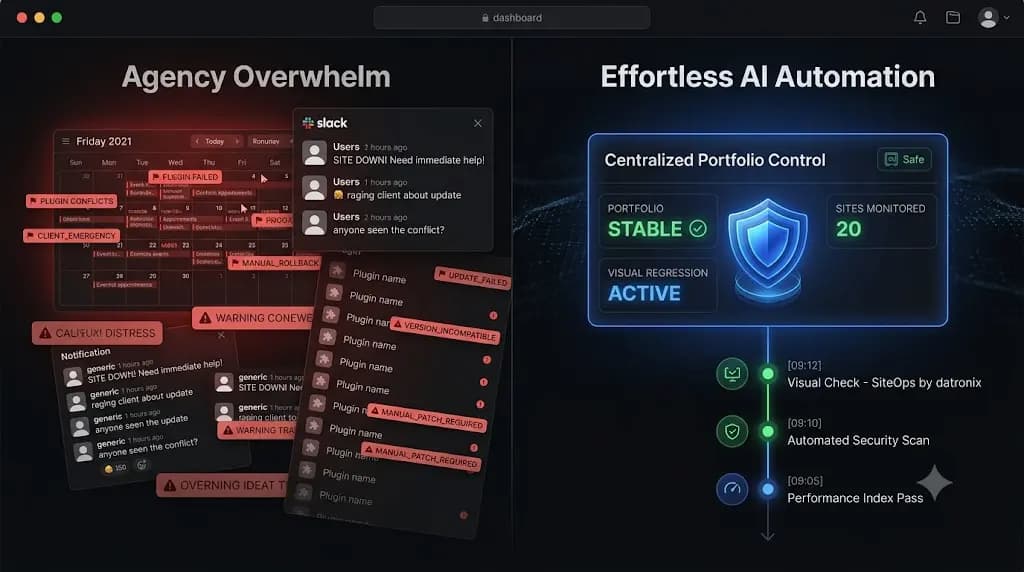
How We Manage 20+ WordPress Sites Without Losing Our Minds (Agency Case Study)
You sign your 20th WordPress maintenance client. You should be opening champagne. Instead, you are looking at your calendar with a sense of impending dread. Managing three client websites is a side hustle. Managing 20 client websites is a complex logistical operation. When you hit the 20 site threshold, you realize that your initial workflow […]
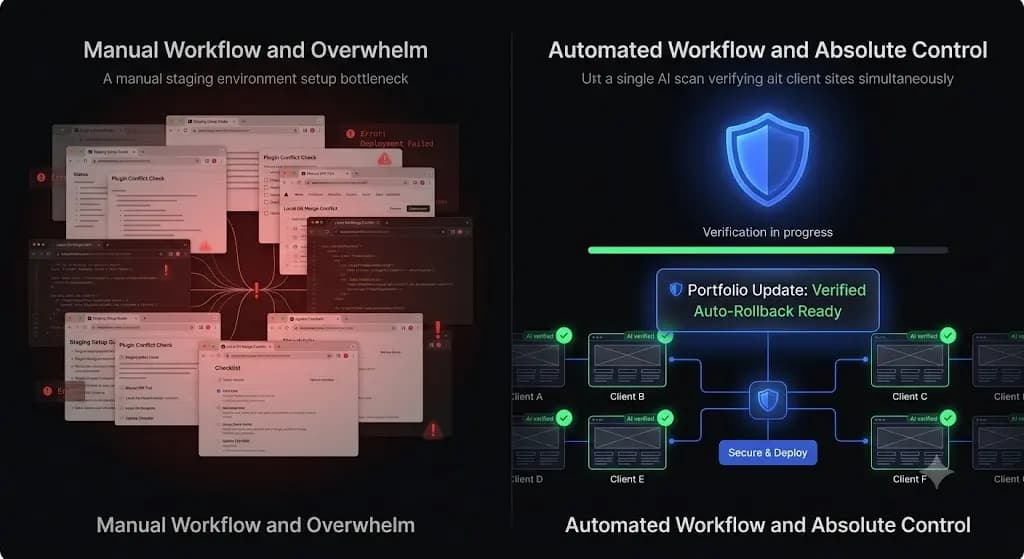
How to Safely Update WordPress Plugins on Client Sites (The Agency Guide)
You click “Bulk Update” on your legacy management dashboard to process weekly plugin updates across 40 client sites. You head out for lunch, assuming the maintenance run was successful. Two hours later, a frantic email arrives from your highest paying e-commerce client. Their WooCommerce checkout button has completely disappeared on mobile devices. You spend the […]